

Navigation Rules
Plugins like the OpenAPI plugin generate sidebar navigation automatically. Navigation rules let you customize that generated sidebar without changing the source. You can:
- Insert items at a specific position
- Modify items
- Sort items with a custom comparator
- Move items to a different position
- Remove items
Setup
Add a navigationRules array to your zudoku.config.tsx:
Code
Inserting docs
Use type: "insert" to add items before or after a matched sidebar item. The match string uses
the tab label as the first segment and navigates into the sidebar tree.
Code
This inserts a "Getting Started" doc before the first item in the Shipments sidebar.
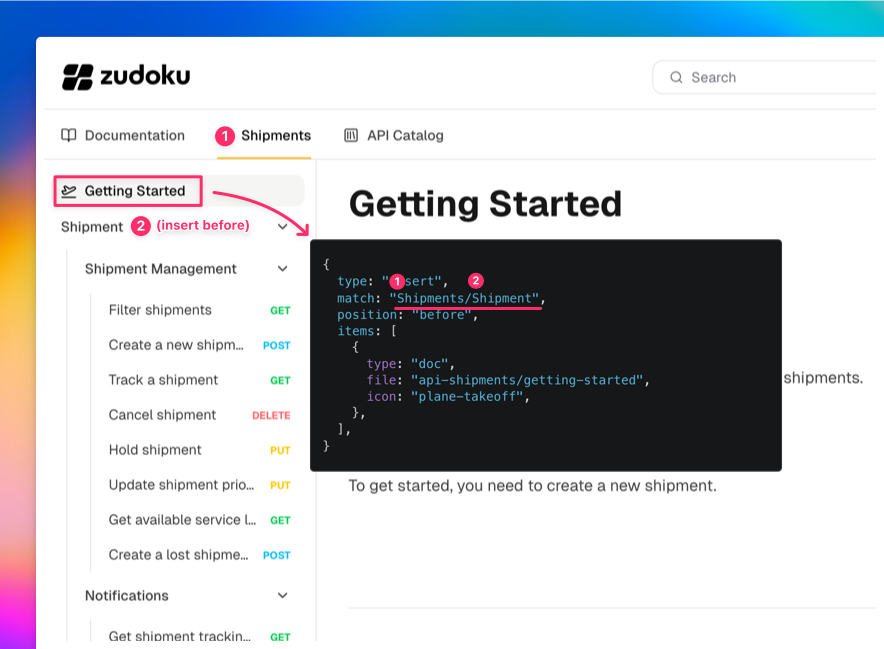
The MDX file lives at pages/api-shipments/getting-started.mdx (under your configured docs
directory, matching the API's base path).
Adding links
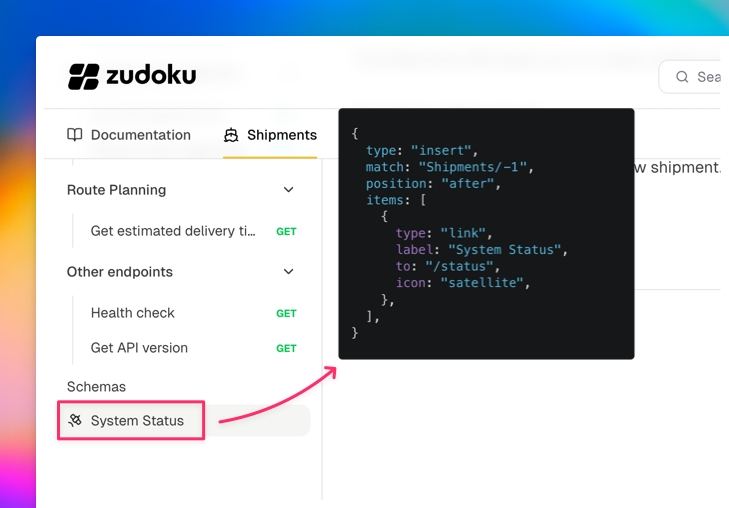
You can insert external or internal links the same way:
Code
The -1 index targets the last item, and position: "after" places the link at the very end of the
sidebar.
Modifying items
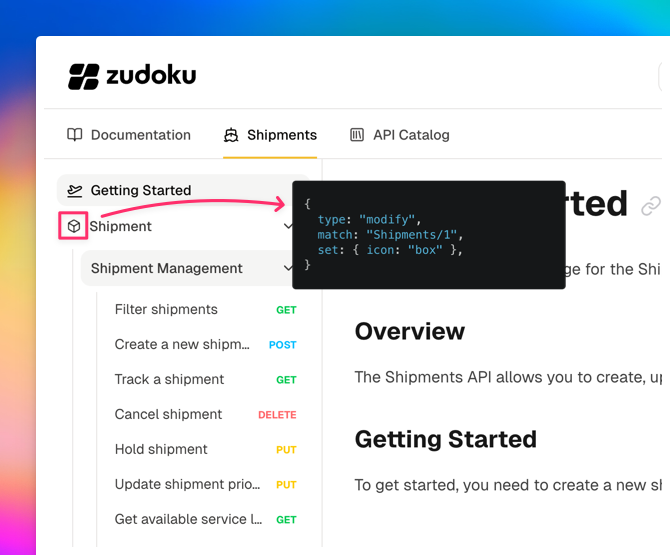
Use type: "modify" to change properties of existing sidebar items like their icon, label, or
collapsed state:
Code
Removing items
type: "remove" hides items from the sidebar. This is rarely needed since it's usually better to
fix the underlying source, but can be useful as a quick workaround:
Code
Sorting items
Use type: "sort" to reorder children of a category alphabetically or with any custom comparator:
Code
The by function receives two navigation items and works like a standard Array.sort comparator.
Moving items
Use type: "move" to relocate an existing item to a different position in the sidebar:
Code
This moves "Track a Shipment" to the top of the Shipments category. You can also move items between different levels, for example from inside a category to the root level.
Rule order
Rules are applied sequentially, so order matters. For example, sorting first and then inserting places the new item at an exact position in the already-sorted list. Inserting first and then sorting will sort the new item along with everything else.
Complete example
This is the configuration used in the Cosmo Cargo demo shown above:
Code
Match syntax reference
For the full match syntax including label matching, index selectors, and nested paths, see the Navigation Rules reference.